Most people speak around 150 words a minute and type closer to 40. That should make dictation an easy win.
But for years the tools felt like they were built for perfect sentences in one language, spoken slowly, with punctuation negotiated like a peace treaty. Apple Dictation worked well enough for quick notes, but it struggled once you mixed languages, used technical terms, or wanted the text to land cleanly in the app where you were already working.
That part has changed, and now whisper-class models can transcribe accents, jargon, and mixed-language speech that broke older dictation for a decade. The trouble now is the lineup. The Mac voice-to-text category is crowded, and the tools do different jobs that all get marketed the same way.
Someone who wants to talk on Slack does not need a meeting bot or a developer dictating prompts into Cursor, nor do they need podcast-editing software.
This guide compares the 10 best voice-to-text apps for Mac in 2026 and sorts them by the work you actually do.
What are Speech-to-Text Apps and What Do They Do?
Voice-to-text apps turn what you say into written text. On a Mac, that covers five separate jobs:
- Dictation apps type your speech straight into the app you're already in: Slack, Gmail, Cursor, Notion, Mail, a browser field.
- Transcription apps convert existing audio and video files into text after the fact.
- Meeting transcription tools join or record calls and produce notes, summaries, and action items.
- Voice command tools let you run your Mac by speaking instructions instead of clicking.
- Browser voice typing works inside one web app and nowhere else, the way Google Docs does.
This guide is about the first job, Mac dictation: speaking and getting text into the place where you already write.
How We Picked the Apps
We put every tool through the same ten checks we consider essential for a strong Mac voice-to-text app.
This list was not built around feature count, as a tool with twenty features can still be the wrong choice if it only works in one browser tab or was built for meeting notes instead of writing into actual Mac apps.
Quick Comparison
The 10 Best Voice-to-Text Apps for Mac in 2026
1. Lispr
Free · macOS 11+ · 4 MB

Lispr is the easiest dictation app to start using on a Mac, and the one most people should try first. No signup, no email, no credit card, no trial clock. You download a 4 MB .dmg, grant two permissions, hold a key, and talk. The text appears in whatever app your cursor sits in.
At a glance
What Lispr Does Best
Lispr runs as a menu-bar agent with no window to babysit. The same key works in Slack, Gmail, Cursor, Notion, Mail, Linear, and the browser address bar because it types into the app you're already in. Google Docs Voice Typing only works inside Docs in Chrome; Lispr goes wherever your cursor does.
Setup takes about a minute. The download is 4 MB, and it runs on macOS 11 and up as a universal binary, so older Intel Macs work alongside Apple Silicon. VoiceInk and BetterDictation, two of the strongest local tools, won't run on anything older than M1.
Speed is what turns dictation into a habit. Median end-to-text latency sits near 300 ms for clips under ten seconds on a warm connection. Below half a second, you stop noticing the wait. Wispr Flow runs closer to a second, and Apple Dictation can take one to three.
Where Lispr is Different

Four things set it apart from the rest of this list.
Your language is there from the first screen. Onboarding ships in 35 languages reviewed by native speakers, not run through a translation API. Open Lispr in São Paulo and the setup is in Brazilian Portuguese. Open it in Kyiv and it's in Ukrainian, not the Russified default that most Western dev tools fall back on. Underneath, Whisper large-v3-turbo transcribes around 99 languages.
It keeps up when you mix languages. Say "let's ship this feature, але треба ще додати тести" and the transcript comes back word for word, Ukrainian and English in one sentence, spacing and casing intact. Apple Dictation can't do mid-sentence code-switching. Most rivals only manage it some of the time.
It translates while you talk. Speak one language, get another typed into the current app, with no second tab and no copy-paste:
- Speak Ukrainian, get an English client email.
- Speak Spanish, get an English Slack update.
- Speak English, get Portuguese for a Brazilian customer.
Almost nothing else here offers translation as a built-in flow.
It holds up on bad networks. Lispr uses HTTP/2 over TCP only, so it keeps working on iPhone Personal Hotspot, hotel WiFi, mobile data, and symmetric NATs where QUIC gets dropped. A geo-aware relay routes around blocks in Macau, Hong Kong, and mainland China. Most "global" voice apps stop working there and never tell you why.
You also pick the trigger key: Option, Control, Command, Shift, or Fn, whichever you haven't already mapped to something else. Wispr Flow locks you to the backtick.
Privacy
Lispr is a cloud service, and here is what that means in practice:
- Your audio travels over an encrypted connection to be transcribed.
- Whisper large-v3-turbo transcribes it, the text comes back, and the audio is discarded.
- Nothing stays on the server, and nothing trains a model.
- There's no account, so there's no profile to leak.
- Your last 200 dictations live on your own device, with one-click retry when a transcript fails.
Where Lispr is Not the Best Choice
- Mac-only today: Windows is code-complete but not shipped yet, and iOS is planned. Cross-platform users may be better served by Willow Voice or Wispr Flow for now.
- No offline mode: Lispr is not the right choice if your work cannot depend on a network or if you need fully local transcription.
- No enterprise compliance: Lispr does not currently offer HIPAA, SOC 2, SSO, admin console, or team management features.
- No voice commands: Words like “send” or “comma” are typed as words, not executed as commands.
- Not built for file transcription: MacWhisper is a better fit for turning recorded audio or video files into transcripts. Lispr is built for live dictation into apps.
Who Should Choose Lispr
- Bilingual founders, consultants, and engineers who draft in English while thinking in another language
- Developers writing long prompts into Claude, Cursor, or a terminal
- Anyone tired of the signup-paywall-trial routine that most dictation apps run you through
- People whose dictation app dies on the train, in a hotel, or behind a corporate firewall
- Mac users who want the lowest-effort way to find out whether voice typing fits their work
For everyone who wants free, fast, multilingual dictation with no account, Lispr is the obvious first install.
Try it
Download the .dmg at lispr.ai, grant two permissions, and you're dictating in under a minute. No account, no email, no credit card.
2. Wispr Flow

Platforms: macOS, Windows, iOS, Android
The most polished paid dictation app on this list, and the tool that set the template for AI voice typing. Pick it if you work across several devices and will pay for a finished product.
What It Does Best
- Runs system-wide on Mac, Windows, iPhone, and Android, so one dictation habit follows you across every device.
- Transcribes and cleans up as you talk, cutting filler words and fixing punctuation.
- Learns each app's tone, so a Slack message reads casual and an email reads formal with no mode switch.
- Command Mode edits by voice: tell it to rewrite or reformat what you just dictated.
- Handles 100+ languages with quality that holds up.
Where It Falls Short
- Daily use needs Pro; the free 2,000 words a week run out fast.
- The Mac app is a ~150 MB Electron build, heavier and slower to launch than a native utility.
- The trigger key is locked to the backtick with no remapping, which clashes with code and terminal use.
- Everything ties to a cloud account, so there's a profile behind your usage.
- It drops connections on hostile networks like iPhone Personal Hotspot.
- No built-in translation: it transcribes the language you speak and stops there.
Who it's for: Cross-platform knowledge workers who want a mature, AI-polished writing layer and don't mind a subscription.
3. Superwhisper

Platforms: macOS, Windows, iOS keyboard
Superwhisper is the choice for Mac power users who want local transcription and deep control. It runs Whisper on your own machine, keeps your audio off the internet, and gives you more knobs than anything else here. The trade is complexity.
What It Does Well
On Apple Silicon, Superwhisper runs Whisper locally, so your speech never leaves your Mac. That makes it one of the few offline options in this roundup, and a strong pick for anyone who can't or won't send audio to a server. It supports more than 100 languages and lets you build per-app Modes, so dictating into a code editor behaves differently from dictating an email.
For anyone who likes tuning their tools, Superwhisper rewards the effort. You can bring your own LLM key for post-processing, wiring in cleanup and formatting that match how you write. It plugs into coding agents and handles long, technical dictation without sending a byte to anyone else's cloud.
Where It Falls Short
- The settings surface can overwhelm a casual user who only wants to talk and get text.
- Onboarding is English-first, even if you dictate in another language.
- No built-in translation flow; it transcribes the language you spoke.
- The optional LLM post-processing can mangle non-English text without careful setup.
Who it's for: Privacy-first Mac users on Apple Silicon who want offline transcription and enjoy tuning their tools.
Pricing: Free tier. Pro $8.49/month, $84.99/year, or $249.99 lifetime. Good value for offline use, though the full feature set needs Pro.
4. Aqua Voice

Platforms: macOS, Windows, iOS keyboard
Aqua Voice is the developer's dictation tool. It's tuned for technical vocabulary and code-adjacent text, and it slots into the editors developers already use. For prose full of API names and library calls, it's the most accurate option here.
What It Does Best
- Streams transcription in real time as you speak.
- Runs Avalon, a proprietary model trained for technical and coding vocabulary, so function and framework names come out right.
- An 800-term custom dictionary teaches it the words specific to your stack.
- Integrates with Cursor and VS Code, so the text lands where you're already writing.
- Cuts corrections per paragraph, which is where dictation saves a developer time.
Where It Falls Short
The free tier is a 1,000-word lifetime cap, closer to a demo than a plan you can live on. Real use means signing up and paying from $8 a month. Aqua covers around 49 languages, fewer than the Whisper-based tools, and it has no translation: it transcribes the language you speak. It's cloud-only, and like most cloud tools it gets fragile on bad networks.
For a developer writing English-heavy technical text, none of that matters much. For a bilingual user or anyone who wants a free, no-account utility, the wall goes up fast.
Who Should Choose It
Developers on Mac or Windows who dictate technical prose and want a model that handles their vocabulary without constant corrections. If your writing is full of code and your editor is Cursor or VS Code, Aqua earns its keep
Pricing: Starter free tier (1,000 words lifetime). Pro $8/month billed annually; Team $12/month billed annually. The free tier is a demo, not a daily plan.
5. Willow Voice
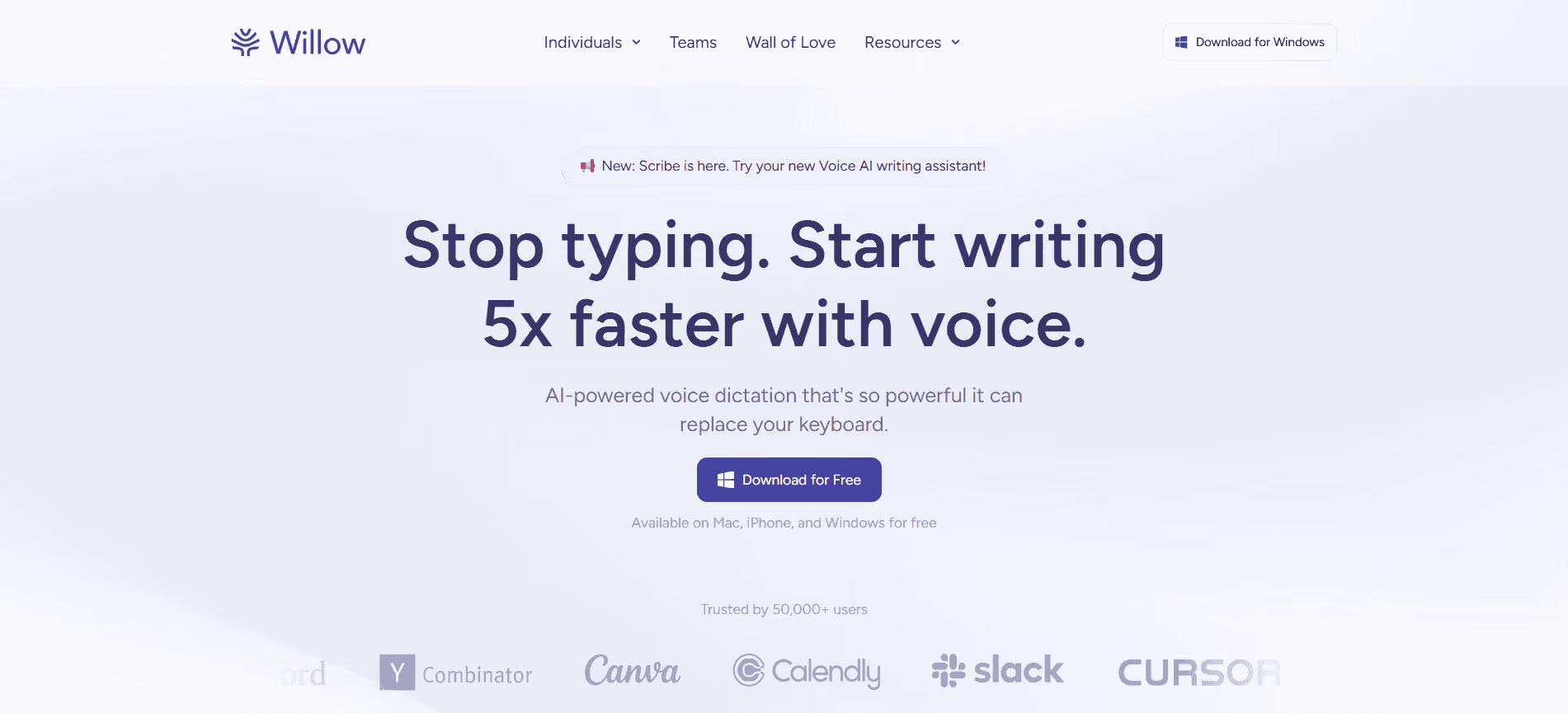
Platforms: macOS, Windows, iOS, Android
Willow Voice is the cross-platform pick for people who want the same dictation tool on every device. It runs system-wide, rewrites as you go, and adds an optional offline mode on Mac and iOS. If device coverage is what you care about most, it competes directly with Wispr Flow.
What It Does Best
- Works across Mac, Windows, iPhone, and Android with a system-wide hotkey.
- Remembers your style per app and rewrites with an AI Mode, cleaning filler and matching register.
- Offers an optional offline mode on Mac and iOS, rare for a cross-platform tool.
- Feels current and well-built, with a free tier to test before paying.
Where It Falls Short
- Unlimited use needs a subscription.
- The free tier caps you at 2,000 words a week with a five-minute session limit.
- An account is required.
- No built-in translation, and no native-reviewed multilingual onboarding.
- Several of its better features lean on the cloud.
Who it's for: Multi-device knowledge workers who want dictation on a Mac, a Windows machine, and a phone, behaving the same on each.
Pricing: Free tier (2,000 words/week). Individual $12/month billed annually; Team $10/month billed annually; Enterprise custom. Unlimited use needs the subscription.
6. VoiceInk

VoiceInk is the indie local-first dictation tool for Apple Silicon. It runs Whisper and Parakeet on the Neural Engine, keeps everything on your Mac, and sells for a one-time price instead of a subscription. For a privacy-minded user on a newer Mac, it's a lot of tool for the money.
What It Does Best
VoiceInk transcribes locally using the Neural Engine, so your audio stays on the machine. Power Mode gives you app-aware profiles, changing behavior based on where you're dictating, and you can add custom vocabulary for terms it wouldn't know. The pricing is honest and one-time: $25 to $49 depending on how many Macs you cover, or free if you build it from the GPL source.
For someone who wants local Whisper without a subscription and doesn't mind an indie project, VoiceInk delivers. The optional cloud AI features work through your own API key, so even the smart cleanup stays under your control.
Where It Falls Short
VoiceInk runs on Apple Silicon only, with no Intel support and a macOS 14.4 floor, ruling out a wide swath of older Macs that Lispr's universal binary still covers. The AI features need an external API key, one more thing to set up. It's a solo-developer project with no SLA and no team features, and there's no built-in translation. Its onboarding doesn't carry the native-reviewed multilingual story Lispr leads with.
For the right Mac and the right user, none of this is a dealbreaker. It does narrow who VoiceInk fits.
Who should choose it
Privacy-first Mac users on Apple Silicon who want local transcription, a one-time price, and don't need translation or team features. If you're on an M-series Mac and you'd rather own your tool than rent it, VoiceInk is a strong, fair-priced option.
7. BetterDictation

Platforms: macOS (Apple Silicon M1+)
The clean offline push-to-talk tool for newer Macs. It runs Whisper large-v3-turbo locally, charges once instead of monthly, and keeps your dictation off the network.
What It Does Best
- Runs Whisper large-v3-turbo on-device, so transcription happens offline with nothing sent to a server.
- Push to talk, release, and the text appears.
- Covers 100+ languages.
- The Pro tier adds stammer correction that cleans up false starts.
- One-time pricing suits anyone allergic to subscriptions.
Where It Falls Short
It runs on Apple Silicon M1 and newer only, so it leaves out the Intel Macs that Lispr supports. Transcription is batch rather than streaming, so you don't watch the words appear live the way you do with Lispr or Aqua. The AI cleanup sits behind a small recurring add-on on some plans, even though the base app is one-time. There's no built-in translation, no native-reviewed onboarding, and no live-flow display.
These are the trade-offs of a local-first tool, not failings. They define who it's for.
Who Should Choose It
Privacy-focused users on an M1 or newer Mac who want dependable offline dictation, a one-time price, and don't need translation or a live streaming display. If keeping audio on your own machine matters most, BetterDictation is a serious pick.
Pricing: No practical free plan. Basic $39 lifetime; Flex $49 lifetime + $2/month; Studio $149 lifetime + $2/month per device. Paid upfront, with Pro cleanup as a recurring add-on.
8. MacWhisper

Platforms: macOS + iOS companion
Verdict. The best file-transcription tool on this list. Drop in an audio or video file and it returns clean, speaker-labeled text. It does dictation too, but that's the side feature.
What It Does Best
- Transcribes podcasts, interviews, recorded calls, and lectures with Whisper Large-v3 or Parakeet.
- Speaker diarization labels who said what.
- Auto-records from Zoom and Teams, turning meeting audio into a transcript with no extra steps.
- A workhorse for anyone sitting on hours of recordings.
Where It Falls Short
- File-transcription-first; dictation is bolted on rather than built in.
- A heavier app, around 200 MB.
- The features most people want sit behind the paid Pro tier.
- No translation flow, and English-first onboarding.
- Not built for typing live into Slack, Cursor, Gmail, or Notion through the day.
Who it's for: Mac users with audio and video to transcribe: podcasters, journalists, researchers, and anyone processing recorded meetings or interviews.
Pricing: Free tier. Gumroad Pro around €59 lifetime; the App Store build uses in-app purchases at $6.99, $8.99, $29.99, and lifetime $89.99–$99.99. Check which version you're buying.
9. Apple Dictation

Platforms: macOS, iOS, iPadOS, watchOS
The free baseline already sitting on your Mac. Press the Fn key and talk, with no app to install. Fine for short, casual dictation. It shows its age for daily multilingual work.
What It Does Best
Apple Dictation costs nothing and needs no setup, because it's part of macOS. On Apple Silicon it runs on-device, so basic dictation stays local and private. It adds punctuation, types continuously, and works system-wide across your apps. For firing off a quick text, a short note, or a sentence here and there, it does the job without you thinking about it.
For a Mac user who dictates occasionally and doesn't want another app, Apple Dictation is a reasonable default. It's already there, it's free, and it's good enough for light use.
Where It Falls Short
Latency runs one to three seconds, slow enough that you feel the wait, against Lispr's roughly 300 ms. Its punctuation grammar is rigid, and it stumbles on technical vocabulary. Switching languages is manual, and it breaks on bilingual code-switching: speak two languages in one sentence and the transcript falls apart. There's no AI cleanup and no translation.
For occasional use, you can work around all of this. As the engine for daily writing across languages and apps, it runs out of road.
Who it's for: Casual Mac users who dictate now and then and want a free, built-in option with nothing to install.
Pricing: Free, built into macOS. The best "already installed" baseline, but not an AI dictation product.
10. Google Docs Voice Typing

Platforms: Web, Chrome on Mac (inside Google Docs and Slides)
The free browser option for people who write inside Google Docs. Open a document in Chrome, turn on Voice Typing, and talk. It works well in that one place and nowhere else.
What It Does Best
- Free and built into Google Docs and Slides speaker notes, with nothing to install.
- Transcribes in 100+ languages.
- Takes voice formatting commands like "new line" or "bold" inside a document.
- Runs in the browser, so it behaves the same on any machine with Chrome.
Where It Falls Short
- Works only inside Google Docs in Chrome.
- Won't type into Slack, Cursor, Gmail, Notion, Mail, or any desktop app, so it isn't a system-wide Mac tool.
- Needs an internet connection.
- Handles one language at a time, with no code-switching.
- No AI cleanup and no translation.
Who it's for: Writers and students who do all their writing inside Google Docs and want a free, zero-install voice option.
Pricing: Free, inside the Google Docs and Slides workflow. No separate paid plan for the feature.
Detailed Feature Comparison
The table below lays out the differences that decide which tool fits your work, with each app's strongest point and its biggest limit. Competitors' real advantages stay visible. Hiding them would make the ranking less useful, not more.
Superwhisper, VoiceInk, and BetterDictation run fully offline. MacWhisper handles recorded files better than anything on the list. Apple Dictation comes free with your Mac. Google Docs Voice Typing covers Docs writing at no cost. Lispr's edge sits in a different column: free with no account, fast, multilingual, with translation and code-switching, the rest mostly lack.
Pricing
Plenty of these tools say "free." Some mean it. Others mean a trial with a word cap that runs out in a week. The table below separates the two, with paid figures taken from each product's own page. Prices move, so confirm the current numbers on the live pricing page before you buy.
How to Choose The Right App for Your Workflow
Match the tool to the job. The table below points you to the right pick by what you need most.
Pick the place you actually write. That decides more than any feature list.
Conclusion
Voice-to-text tools now solve different jobs. Some are built for offline privacy, some for file transcription, some for browser writing, and some for everyday Mac dictation.
For most Mac users, Lispr is the best place to start. It is free, lightweight, requires no account, types into the app you are already using, supports multilingual dictation, and can translate as you speak.
If you need fully offline transcription, choose Superwhisper, VoiceInk, or BetterDictation. If you need to transcribe recorded files, choose MacWhisper. But if you want to talk instead of type on your Mac without signup or setup friction, Lispr is the simplest first choice.
Try Lispr for free. No account, no email, no credit card.











Heading 1
Heading 2
Heading 3
Heading 4
Heading 5
Heading 6
Lorem ipsum dolor sit amet, consectetur adipiscing elit, sed do eiusmod tempor incididunt ut labore et dolore magna aliqua. Ut enim ad minim veniam, quis nostrud exercitation ullamco laboris nisi ut aliquip ex ea commodo consequat. Duis aute irure dolor in reprehenderit in voluptate velit esse cillum dolore eu fugiat nulla pariatur.
Block quote
Ordered list
- Item 1
- Item 2
- Item 3
Unordered list
- Item A
- Item B
- Item C
Bold text
Emphasis
Superscript
Subscript