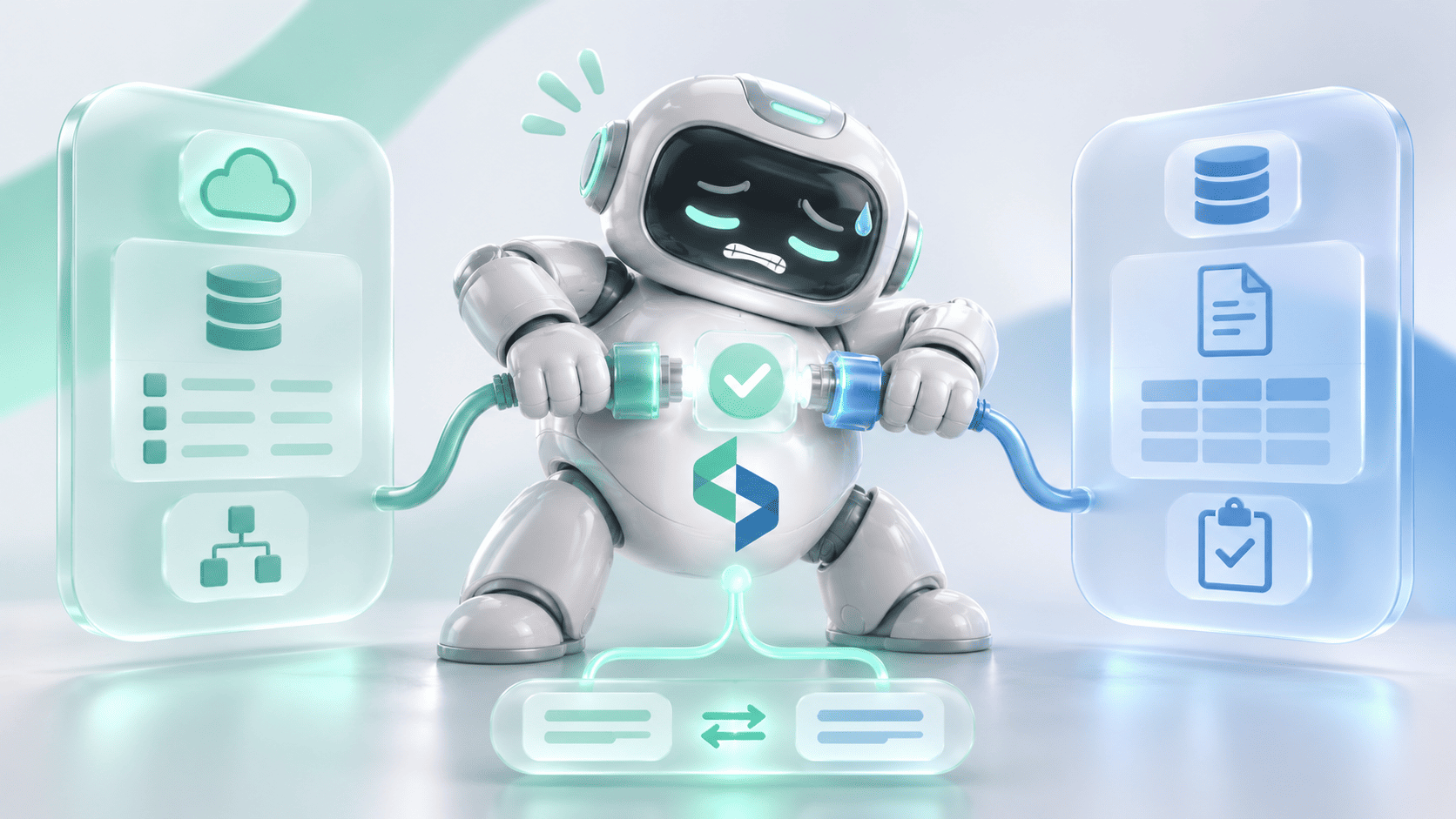
Your firm opens a new matter. The document workspace is ready, Outlook is connected, and the practice management system holds the right client information. Then an email lands under the wrong matter, another document arrives without its required metadata, and the firm's new AI assistant needs relevant precedents without reaching files behind an ethical wall. Every application is connected, and the document workflow still has gaps.
NetDocuments integrations connect a firm's document management system with practice management, Microsoft 365, AI applications and other business tools. With a large ecosystem already in place, connecting two applications is the easy part. The real questions are which system owns each piece of information, how documents are classified, who can open them, and what happens when a filing or sync fails. Below, you'll find how the integration approaches compare and what to test before connected applications handle confidential client information.
What Integrations Does NetDocuments Support?
NetDocuments runs an established ecosystem of native features, partner applications and integration tools. Its Partner App Integrations directory covers Microsoft 365, legal practice management, electronic signatures, AI applications and other legal technology.
Those integrations do very different jobs. One helps a lawyer file an email from Outlook, another links a practice management matter to a document workspace, and a third lets an AI application retrieve permitted document text. All three connect to NetDocuments, and none can stand in for another:
Native Integrations and Partner Applications
Start with what NetDocuments already supports. The Microsoft 365 integrations cover the document and email work most firms do every day, and NetDocuments' administrative tools handle workspace organization, metadata and security. A custom application that reproduces an existing email-filing feature or a standard workspace policy adds cost and risk without adding capability.
Partner applications cover requirements the built-in connections leave open. Before choosing one, confirm its supported operations, licensing, authorization model and support arrangements.
APIs and AI Connections Do Different Jobs
A traditional API integration exchanges records or performs document-management operations between applications. An AI connection through ndConnect's Model Context Protocol (MCP) exposes a defined set of tools that approved AI applications use to work with permitted repository content. Understand the operations each one supports before you choose, and start from the document workflow the firm needs.
Connecting NetDocuments With Legal Practice Management Systems
Practice management and document management overlap around clients and matters, and each keeps its own responsibilities. The practice management platform holds client relationships, matter information, responsible lawyers and operational status. NetDocuments holds the document repository: workspaces, documents, metadata, versions and access controls. The integration connects the two without blurring that line.
Matter Identity and Workspace Identity
A matter in the practice management system and a workspace in NetDocuments can represent the same engagement while carrying different internal identifiers. The practice management system keeps its Matter ID, and NetDocuments keeps its own workspace reference and organizing attributes, so the integration has to preserve the approved link between them. A familiar matter name won't do, because one client may have several matters with similar descriptions, and two engagements should never share documents because their names look alike.
Clio and NetDocuments
Clio Manage has a documented NetDocuments integration with two organizational approaches. In Workspace view, each relevant Clio matter has to be linked to its NetDocuments location. In Cabinet view, Clio builds a configured folder structure under the selected cabinet. Clio also lists partner solutions that automate more of the client and matter handling, so for a Clio firm, the right project may be configuring and validating the existing connector.
Existing Workspaces Need Special Attention
Say the firm has used NetDocuments for years, and its repository already holds workspaces for many clients and matters. Now it adds a practice management integration. If the integration creates a new workspace for every matter it finds, the firm ends up with duplicates.
So before switching on automated creation, identify the existing workspaces and map them to the practice management records. That initial mapping is a separate job from syncing future changes. Then define what happens when a matter is renamed, closed, restricted or moved to another team, because a reliable integration keeps each approved matter tied to its correct workspace through all of those changes.
NetDocuments and Microsoft 365: Outlook, Word, and Teams
Microsoft 365 sits at the center of most law firms' document work: client emails arrive in Outlook, lawyers draft in Word, and colleagues collaborate in Teams. NetDocuments already integrates with all three, and the implementation work is making sure the documents they produce stay organized and governed.
Outlook Email Filing
NetDocuments' M365 Outlook add-in files emails and attachments into the repository. Users choose filing locations, search for documents, select which attachments to save, and share NetDocuments documents while composing messages. The add-in also supports folder mapping, which links an Outlook folder to a NetDocuments location so that emails filed into it are profiled according to the configured rules.
That helps teams that already organize email by client or matter, provided the mapping is right. A user may have two matters with similar names, or an old Outlook folder still pointing to a closed engagement, so check each mapping against its intended destination.
Required Metadata and Filing Validation
The add-in includes a useful control for mapped folders. As a user sets up a mapping, the system checks whether the required document profile fields are filled, and the user has to complete any missing values before saving it. A firm that requires a client and matter reference before filing, for example, gets that check out of the box. Validate the firm's required profile configuration before anyone builds a separate metadata form.
Confirm That Filing Succeeded
Choosing a filing location and storing the email are two different events. The add-in's Global Filing Indicator marks the difference: within seconds of a successful filing, Outlook shows a grey ND: Filed category, and a failed filing shows an error category instead.
An email sitting in a mapped Outlook folder is weak evidence on its own. The acceptance test is the document in the repository.
Word and Office Document Workflows
NetDocuments supports Microsoft Office work through its integration products, so lawyers can work on documents that stay tied to the repository. Opening an existing document, saving a new one and updating a managed version are three different operations, and the firm should confirm how its chosen Office integration handles each, including co-authoring and versioning in its own configuration. A downloaded or emailed copy sits outside the repository's governance, whatever happens to the original.
Microsoft Teams Integration
NetDocuments' Teams integration lets users search, preview, open, save, rename and share repository documents while working in Teams, and NetDocuments states that access continues to follow the permissions set in the DMS. That matters when a document is referenced in a channel whose members don't all have access to the matter, because channel membership grants nothing in NetDocuments.
The firm still needs to tell a governed document link apart from a distributed copy. A file sent as an email attachment or copied into another repository carries its own access and retention behavior. Microsoft 365 integration should make legal documents easier to use, and every copy made along the way is a document the repository no longer governs.
NetDocuments AI Integrations: ndConnect, MCP, and Governance
AI brings a new integration requirement. A firm may want an approved AI assistant to search precedents, retrieve relevant agreements or answer questions from its own repository, and that access can't bypass existing confidentiality and matter restrictions. NetDocuments handles this through its AI integration program, ndConnect.
What Is ndConnect?
ndConnect connects approved external applications, including AI tools, to governed repository content. NetDocuments offers two paths. The standard ndConnect path lets users select documents and load them into an authorized partner application such as Harvey, Legora, Thomson Reuters or Vincent by Clio. The MCP path lets approved AI tools request permitted documents through the Model Context Protocol, without anyone downloading and re-uploading files by hand. NetDocuments' own figures show how fast firms are adopting AI on its platform.
What Can MCP via ndConnect Do?
NetDocuments' support documentation describes MCP via ndConnect as a public preview. The approved MCP clients today are Claude, ChatGPT and Microsoft Copilot, and the documented operations look like this:
Once saving returns, MCP saves as the user, so it can only save where that person already has rights, and it can't save to a ShareSpace, a saved search or a filter. A firm that needs to edit, version or delete documents through an external tool has to look to other supported products or the API.
Availability and Licensing
The preview isn't open to every customer by default. NetDocuments requires the organization to be approved for MCP through its NetDocuments representative, a repository administrator to enable MCP in the Security Center, and every user to hold an active AI 300 (ndMAX Enterprise) subscription. The AI platform may add its own requirements: for Microsoft 365 Copilot, each person also needs a Copilot license, and NetDocuments' Copilot listing covers repositories in its US (Vault) service. MCP use doesn't draw on the firm's NetDocuments AI token allocation. Confirm current availability and subscriptions before planning a rollout.
Permissions and Ethical Walls
NetDocuments documents that MCP works within the signed-in user's existing repository permissions and creates no new permission set. A user who can't open a document in NetDocuments can't get it through the AI tool, and existing ethical walls and data loss prevention (DLP) rules apply to every MCP connection. A document or workspace whose DLP policy blocks AI interaction stays out of retrieval.
That's the key difference from exporting a large document set into a separate search tool. The firm's existing access model governs each retrieval, with no parallel permission system to build and maintain.
Document Text Still Reaches the AI Provider
Governed access controls what leaves the repository, and it can't control what happens afterward. An authorized AI application that retrieves content receives the relevant text so it can answer the user. NetDocuments decides what the tool may retrieve, and the AI provider's processing, retention, confidentiality and contract terms govern everything after delivery. Review those terms before approving a connection, especially where the content includes privileged communications or client information.
AI Search and Legal Verification Are Separate Steps
An AI assistant can retrieve a relevant precedent and write a plausible summary, and the lawyer still has to check it against the source and judge whether it fits the matter. Retrieval quality also depends on the documents themselves: MCP works from extracted document text, so scanned PDFs without good OCR may return little or nothing. Pilot an AI connection on the firm's real documents, scans included, before relying on it. Our guide to legal document automation for law firms covers generated and incoming documents in more depth.
Native Integrations vs. REST API vs. MCP
NetDocuments offers several routes for connecting external applications, and the right one depends on what the application has to do.
When the REST API Is Relevant
NetDocuments provides REST API capabilities for supported integrations. A custom application may need to exchange document information with another business system, or perform an operation no connector supports. Before choosing this route, the engineering team checks the relevant API methods, authentication, authorization and product availability in NetDocuments' current developer documentation, because an API's existence says nothing about whether a given operation is open to every customer.
When MCP Is Relevant
MCP is worth evaluating when an approved AI application needs the supported document tools. It covers a narrow set of operations, and the current preview can't edit or delete existing documents, so a wider document-management workflow needs a different supported route.
When Existing Features Are Enough
Outlook filing, Teams document access, workspace policies and folder templates are established NetDocuments capabilities. A custom project should close a confirmed gap, with no rebuilding of those features without a business reason. Choose the method that supports the required operation and security model, whatever is newest.
NetDocuments Data Ownership: Matters, Workspaces, Metadata, and Permissions
A document integration needs clear ownership of every important record and control, well beyond matching client and matter names. A planning matrix helps settle those responsibilities:
These are design choices, and each firm sets its own.
Workspace Templates and Folder Packs
NetDocuments supports predefined workspace and folder structures through Folder Packs. Administrators define folders with their profile and security values and apply them to workspace templates, so every new workspace follows the firm's intended layout, with consistent places for correspondence, agreements, pleadings and other matter documents. The exact structure depends on the practice. Folder Packs already exist, so a custom integration should recreate them only for a specific unsupported requirement.
Workspace Security Manager
NetDocuments' Workspace Security Manager (WSM) lets administrators define policies of users, groups, permissions and access controls, then apply them to workspaces and everything inside. A WSM policy overwrites the permissions already in place, including those set by folder inheritance, filing and profile-based security, and anything moved or copied into a governed workspace inherits the policy. A Lock Policy option turns the policy into a wall that other inheritance mechanisms can't change.
That calls for careful configuration and testing. NetDocuments notes that applying permissions to workspaces with many objects can take time, so verify effective access after the policy has finished applying, and apply it to each new workspace that needs it.
Metadata Carries Real Weight
A document can sit in a folder with the right name and still be classified wrongly. An email filed to the right client workspace with the wrong matter profile affects search, organization, retention and downstream workflows. So the integration validates required attributes and never relies on folder structure alone, because NetDocuments governs document identity, classification, versions and access, well beyond serving as a file destination.
Example: From an Approved Matter to Outlook Filing and Governed AI Access
Take a mid-market law firm running a practice management system, NetDocuments, Microsoft 365 and an approved external AI application. It wants one consistent process from matter opening to everyday document work: the correct workspace, correspondence filed to the right place, authorized collaboration and controlled AI retrieval. The workflow is illustrative, built to show the decisions involved.
Step 1: Confirm Matter Approval
The process starts from a matter the firm has authorized, with the client, matter identity, responsible lawyer and approval state recorded in the practice management system. An intake record alone proves nothing about approval. Conflicts review, engagement acceptance and other required decisions stay with the right professionals, and the automated process respects the recorded outcome. Our law firm client onboarding guide covers the wider process.
Step 2: Map the Matter to the Correct Workspace
The approved matter needs a reliable link to its NetDocuments workspace, so the implementation first checks whether a workspace already exists. If it does, the workflow confirms the intended relationship. If a new workspace is needed, the firm evaluates its practice management connector and NetDocuments configuration before anything is built. The goal is the correct workspace, created or linked once, with no duplicate of an existing matter location.
Step 3: Apply the Approved Workspace Structure
With the relationship in place, the firm applies its intended structure, which may mean a configured workspace template and Folder Pack that reflect its document-management requirements. Required profile attributes, such as an approved client and matter reference, are filled before the workflow is accepted, and the team confirms them in the workspace itself. A workspace name proves nothing about its attributes.
Step 4: Apply Workspace Security
The firm's security configuration decides who can open the workspace and its documents. If the firm uses WSM, the right policy is applied, and for a restricted matter, the firm checks access before any connected application can surface the documents. Confirmation that a policy was submitted is weak evidence, so the team tests effective access once the changes have finished applying.
Step 5: File a Client Email From Outlook
A lawyer receives an email with a client instruction and two attachments, and opens the NetDocuments Outlook add-in. Depending on configuration, the filing location is chosen by hand or suggested through an existing folder mapping or prediction. The lawyer checks the destination and selects the items to file, the add-in's metadata validation catches missing profile fields, and the ND: Filed indicator confirms the result. The rollout test then checks the email and the chosen attachments in the right NetDocuments location, which says far more than the add-in opening without errors.
Step 6: Open the Document Through Teams
A colleague on the matter team needs to review the filed correspondence and opens it through the NetDocuments integration in Teams, which enforces the repository's permissions. A user without NetDocuments access gains nothing because a link appears in a Teams conversation. The firm also checks the difference between sharing a governed repository link and sending an independent copy, since the two carry different security consequences.
Step 7: Retrieve a Precedent Through an Approved AI Tool
This step is optional, and many NetDocuments implementations won't need it. The firm here has preview approval, administrator enablement and AI 300 licensing for MCP via ndConnect. An authorized lawyer asks a supported AI tool for a precedent relevant to the matter, and the tool requests it through MCP. NetDocuments applies the user's permissions and DLP rules, so documents the lawyer can't open, or that policy blocks from AI interaction, stay out of the results. The retrieved text goes to the AI platform to generate its answer, and the lawyer checks that answer against the source documents.
Step 8: Confirm the Complete Result
The firm then evaluates the whole process. Legal Operations confirms the matter and client relationship, Knowledge Management verifies workspace organization, metadata and versions, IT checks integrations, permissions, authentication and recovery, and the responsible legal reviewers confirm the approval and confidentiality controls. The workflow should show that:
- The correct matter is associated with the correct workspace.
- Required metadata is complete.
- Emails and selected attachments are filed to the intended location.
- Document permissions are enforced in connected applications.
- Optional AI retrieval respects the firm's approved access policies.
- Errors are visible and recoverable.
- The relevant actions can be traced.
The target is each application reaching the right information under the right conditions. Every application connecting to NetDocuments is only the starting point.
Security and Governance Controls for NetDocuments Integrations
A document workflow is only as secure as the way every participating application handles access. Five controls cover most of the ground.
Apply Least-Privilege Access
Each integration gets only the permissions its approved operations need. A user opening a document through Teams gains no administrative rights, and an external application that searches documents gets no write or access-management permissions it doesn't need.
Verify Ethical Walls and Workspace Policies
NetDocuments provides controls for restricting documents and workspaces, and those controls need testing with real authorized and unauthorized users. A workspace linked to the right matter says nothing about its permissions, so check effective access after policy changes, team changes and other administrative actions.
Review AI Data Handling
ndConnect applies the repository's existing permissions when an approved AI tool requests content. Once text reaches the AI provider, that provider's terms and data-handling policies apply, so review them before approving any external AI connection.
Keep Operational Evidence Without Unnecessary Disclosure
Integration logs need enough detail to explain each result: the source record, destination document, action, timestamp, outcome and any error. They don't need the contents of privileged documents. Restrict access to the logs and follow the firm's retention rules for them.
Test Revocation
A user leaves the firm, loses matter access, or has an external integration disconnected. Verify how fast each restriction takes effect, and whether exported copies still sit outside the governed repository. A connection that was safe at launch can become unsafe if permission changes aren't handled, so verify security at the point of access, whatever the connector's configuration screen says.
NetDocuments Integration Go-Live Checklist
Before production, test the actual document workflow along with the connection status. This NetDocuments Integration Acceptance Framework is an engineering checklist of our own, and NetDocuments doesn't certify or endorse it.
Test Normal Operations and Failure Cases
A test run on one perfectly configured matter proves little. Include the cases designed to break the workflow:
Some tests apply only to certain integrations. MCP licensing tests matter when the firm uses ndConnect for AI access, while a standard Outlook rollout focuses on filing locations, metadata, user authorization and filing results.
Separate Error Types
Each kind of failure needs its own fix and owner. A wrong matter mapping is a data relationship problem, an incomplete profile is a classification problem, missing authorization is an access problem, and an outside service outage is a technical problem. Retrying an unclear operation without checking it first can create a duplicate document or leave the wrong relationship in place.
Require Named Go / No-Go Approval
Make a named decision before production, with a responsible person on each side. Two conditions define it:
- GO: required mappings, filing behavior, permissions and recovery scenarios have passed the firm's acceptance tests.
- NO-GO: the integration can expose restricted documents, misfile client information without detection, or can't recover from a critical failure without risk.
The firm sets its own criticality thresholds and sign-off responsibilities. A working connection is one input, and production readiness for a legal document workflow rests on the whole checklist.
Common NetDocuments Integration Problems and How to Recover
An established integration can still produce the wrong business result when its data or configuration is off. These are the problems that come up most, with the recovery for each.
Wrong Matter or Workspace Mapping
Similar matter names lead to wrong associations. Use approved identifiers, and confirm existing workspace relationships before creating or linking anything.
Missing Required Metadata
An email or document may arrive without its required profile information. Review the repository configuration and the filing validation already available, and keep the required fields in place.
Outlook Messages Filed to the Wrong Location
A folder mapping or a previously used destination may point to another matter. Check the filed document itself, then correct the mapping under the firm's procedure.
Permission Differences Between Applications
Practice management, NetDocuments and collaboration tools may each hold different access groups. Verify the document permission in the repository and through the supported connection.
Document Copies and Version Confusion
An emailed copy, a Teams-shared link and the managed NetDocuments version can be three different objects. The workflow keeps them distinct, so nobody mistakes an outdated copy for the current document.
AI Connection Is Not Available
The cause may be preview eligibility, licensing, administrator configuration, user authorization or the external AI platform, and the save feature may be paused. Work through those conditions before concluding the repository is down.
AI Retrieval Is Restricted
A document may be excluded because the user lacks access or a DLP policy blocks AI interaction. Respect the restriction, and leave the content where the policy put it.
Repeated or Interrupted Writes
If a document creation or filing has an unclear result, check the destination before repeating it. The integration keeps enough processing information to show whether the first attempt succeeded.
When Does Custom NetDocuments Integration Development Make Sense?
NetDocuments already offers substantial integration functionality, so custom development starts from a confirmed requirement existing products can't meet. Review the Microsoft 365 integrations, practice management connectors, Folder Packs, Workspace Security Manager, partner products and ndConnect first, since configuration and rollout cover many common needs.
Identify the Exact Gap
The gap should be specific and written down before anyone estimates a build. Additional engineering may be appropriate when:
- A required application lacks a suitable connector.
- Matter-to-workspace relationships require specialized mapping.
- The workflow spans several systems with unsupported business rules.
- Additional document metadata or classification logic is required.
- The firm needs monitoring or recovery behavior the selected solution doesn't provide.
- An application needs document-management operations outside the current MCP tool set.
Each of these justifies a closer look. The answer may still be configuration or a partner product, with the native integration left in place.
Define a Bounded Workflow
A useful requirement reads like this: "Connect our approved matter records to the correct NetDocuments workspaces, preserve required metadata, use the supported Outlook filing process, and provide verified permissions and recovery for failed operations." The technical team can then sort what already exists, what needs configuration and what remains unsupported, which a request to sync every document and application never allows.
Plan for Ongoing Ownership
A custom integration needs monitoring, security review, maintenance and support for as long as it runs. The firm will change workspace templates and permissions, and connected applications will update their interfaces, so settle who maintains the integration and how changes get tested. Codebridge designs and builds custom software integrations around the systems firms already use.
US and UK Considerations for NetDocuments Integrations
NetDocuments runs regional services, including US and UK environments, and each integration should use the region that matches the firm's repository and approved data architecture. This matters most for external AI connections, where NetDocuments provides region-specific MCP connection details and individual AI platforms carry their own availability limits. NetDocuments' Microsoft 365 Copilot listing, for example, covers repositories in its US (Vault) service, so a setup that works in the US may not yet be available in the UK.
Confidentiality, retention and data-protection obligations can also differ by jurisdiction. The integration should follow the firm's approved professional and information-security requirements in each, since a vendor connection alone can't satisfy every legal obligation that applies.
NetDocuments Integrations: Frequently Asked Questions
Need a NetDocuments Integration That Fits Your Firm's Document Workflow?
Connecting applications is part of the job. Your firm also needs accurate matter relationships, complete document metadata, the right access controls and a reliable way to resolve exceptions.
Codebridge helps professional services firms design and build software integrations and custom workflows around the platforms they already use. If you're planning a NetDocuments integration or improving an existing one, start with one document workflow: what NetDocuments and its partners already support, which controls your firm needs, and where engineering can close a confirmed gap.













Heading 1
Heading 2
Heading 3
Heading 4
Heading 5
Heading 6
Lorem ipsum dolor sit amet, consectetur adipiscing elit, sed do eiusmod tempor incididunt ut labore et dolore magna aliqua. Ut enim ad minim veniam, quis nostrud exercitation ullamco laboris nisi ut aliquip ex ea commodo consequat. Duis aute irure dolor in reprehenderit in voluptate velit esse cillum dolore eu fugiat nulla pariatur.
Block quote
Ordered list
- Item 1
- Item 2
- Item 3
Unordered list
- Item A
- Item B
- Item C
Bold text
Emphasis
Superscript
Subscript