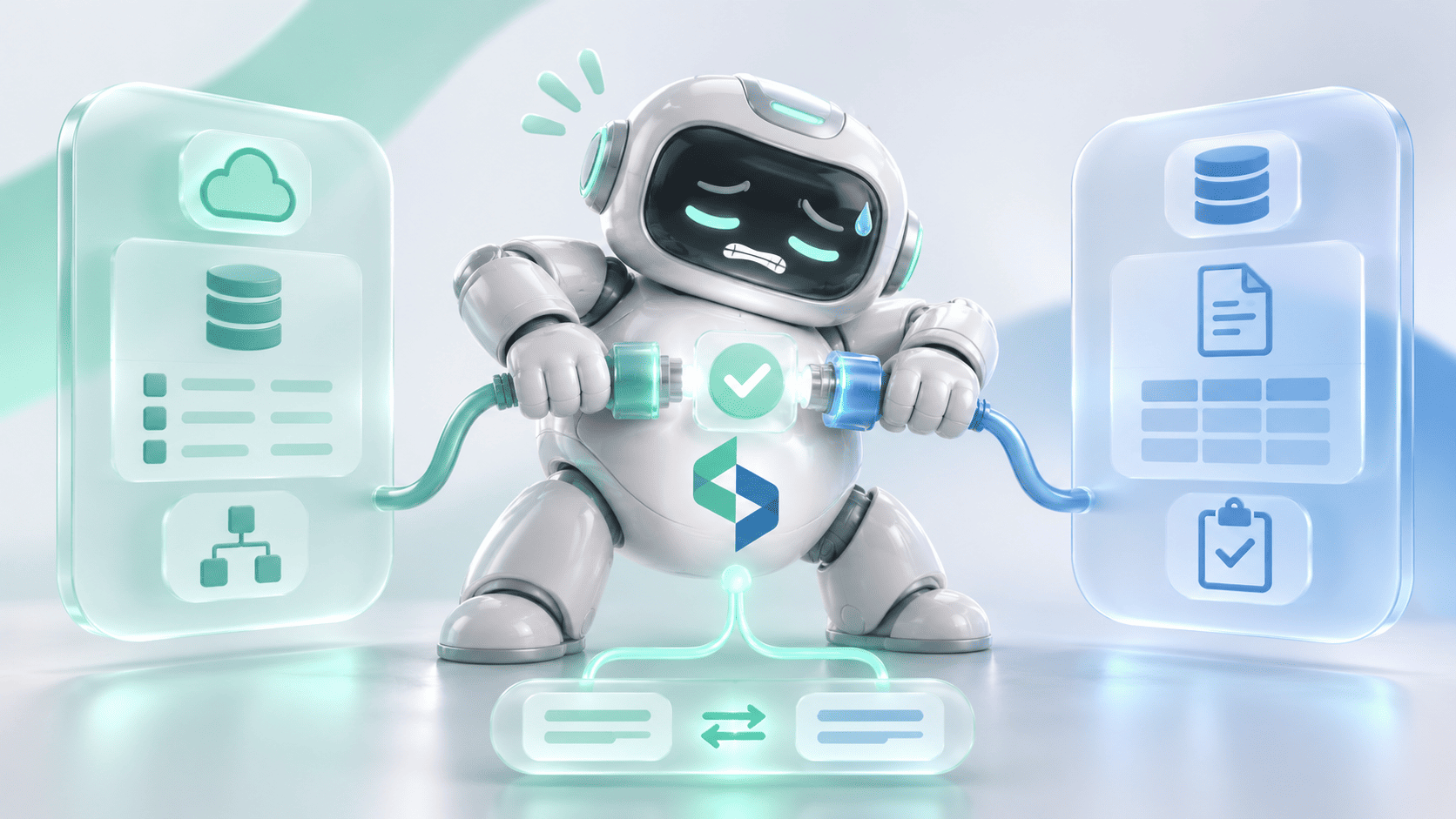
Your firm approves a new matter. The intake system holds the client details, Filevine needs the right project, and the document system needs the right files with the right access. The applications may already be connected, and the harder questions start there: what happens if the integration picks the wrong project type, attaches documents to another matter, or opens client information to someone who shouldn't see it?
Filevine integrations connect case management with intake, communications, billing, document management and other legal workflows. The options range from native integrations and partner applications to Zapier, Workato, Filevine's own workflow automation and the Filevine API. Choosing among them depends on more than whether two applications can exchange data, because the integration has to follow the firm's process, keep each matter's identity intact, respect access controls, and recover when something fails. Below, you'll find how the integration options compare, how Filevine API access and webhooks work, a worked intake-to-project example, and what to verify before an integration handles client information in production.
What Integrations Does Filevine Support?
Filevine supports a wide ecosystem of native and partner integrations, listed in its official integrations directory across communications, billing and timekeeping, intake, medical records, reporting and other services. Those integrations differ a great deal in what they can do. One moves contact information, another creates projects or syncs tasks, and a document connector may search existing files without being able to create or change anything in the external repository. That difference should drive the firm's choice.
These capabilities come from Filevine's official integration and support documentation. Availability depends on the products and configuration each firm runs, so confirm each one against your own environment.
Native Integrations and Partner Applications
Native features are the first place to look for common workflows. Filevine includes integrations for email and calendar work alongside connections to other legal and business tools, and partner applications cover more specialized needs. A personal injury practice may need medical-record retrieval, and another firm may need financial integration or external document management.
A product listed in Filevine's directory may still sit outside your subscription, or reach only some of your case records. For any integration you're considering, confirm the supported actions, the authorization method, the data it can reach, the commercial terms, and who supports it when something breaks.
Zapier and Workato
Filevine documents a Zapier integration with examples that include creating projects from website form submissions, syncing lead status with lead-capture applications, and sending files to document management tools. Filevine also offers a Workato integration for connecting further applications through low-code workflows. Both are useful when the trigger and action you need are supported.
Either one still needs the firm to define what information may move, and when. Creating a Filevine project from an intake form may be technically possible long before the firm's client acceptance and conflicts procedures are complete, and the workflow has to wait for them. A no-code workflow follows whatever business rules you give it, so those rules need the same care as code.
Filevine's Built-In Automation
Filevine also provides LOIS Workflows. According to Filevine's documentation, these workflows run on a schedule or in response to supported Filevine events, and they can include conditions, multiple action steps, branching and selected LOIS capabilities.
That matters when you're weighing additional software. If an approval reminder, a project update or another supported action fits inside a Filevine workflow, an external integration service adds complexity and little else. Start from what the firm needs to accomplish, and pick the technology after that.
Native Integration vs. Zapier vs. Workato vs. Filevine API
Choosing a method means comparing the actual workflow against what each option supports. A firm with a simple notification requirement may need nothing more than an existing connector, while a firm coordinating several applications with complex mapping, permissions and recovery needs may need a more involved solution.
Use Existing Capabilities Before Building New Ones
Take a firm that wants a Filevine project created after an approved form submission. If an existing tool supports the connection and the creation action, the work is mostly configuration, mapping and testing. Custom development would add software the firm has to secure and maintain, so it earns its place only once a specific requirement turns out to be unsupported.
Evaluate the Complete Workflow
One successful action proves little about the rest of the workflow. A connector may create projects without supporting every project-specific custom field, and a document application may transfer files while needing extra configuration to keep matter metadata intact. Verify the complete set of operations, including what happens when information is incomplete, the destination is down, or a user has lost access to a matter.
Compare Ongoing Ownership
Decide who will maintain the integration before choosing it. A partner application relies on its vendor, an iPaaS workflow needs an owner for configuration and monitoring, and a custom API integration needs ongoing engineering and security work. Choose the least complicated option that meets the workflow and the firm's information-security controls.
What Case Data Can a Filevine Integration Use?
Design starts with Filevine's data model, because every matter isn't built the same way. Filevine calls cases or matters projects, and each project belongs to an organization and a project type, with a main contact, team members, and information structured by its configuration.
Projects and Project Types
Creating a project means choosing an organization, known as an Org, and a project type. The project type sets much of the project's structure, and different practice areas can use different sections, fields and workflows.
Filevine's project creation documentation sets a firm limit: the Org and project type can't be changed once the project exists. If either is wrong, the documented fix is to create a new project with the right setup, copy the data across, and archive the original. So project type validation is a critical step in automated matter creation, and the integration has to get it right the first time.
Contacts and Relevant Parties
A project has a main contact, and a legal matter can involve many more people and organizations: clients, opposing parties, attorneys, witnesses and outside service providers. The link between the intake record and the Filevine project has to keep each identity and role correct. The person who submitted an intake form may not be the client who should become the project's main contact, so the integration should never infer that relationship from an email address alone.
Custom Fields and Project-Specific Data
Project types can carry different custom fields, so an integration built around one firm's template may break on another's. Before implementation, confirm which fields exist, which are required, and what values each accepts. The same check applies whenever the firm changes its own project configuration, which means the integration needs a maintenance process for its mappings.
Documents and Activities
Filevine projects hold documents, tasks, notes and other activity, and the user's permissions govern access to all of them. A service account that can read project metadata may still have no business retrieving every document on the matter. Base the design on the actual project structure and the relationships the firm has authorized.
How Filevine API Access and Authentication Work
Filevine offers API access for supported operations, and the right authentication method depends on the kind of integration. An internal integration built for one firm uses a different model from a third-party application that individual users sign in to, and the two can't stand in for each other.
Internal Integrations: Service Accounts and Access Tokens
Filevine's API Gateway authentication guide describes a process built on a client ID and secret, a service account, a Personal Access Token (PAT), and a bearer token used for API requests. For internal integrations, a Filevine customer generates the client credentials through the relevant Account Manager settings, and the guide also lists the organization and user identifiers each request needs.
The service account represents the integration and performs its API actions, so its permissions define what the integration can do. Give it broad access and it can read or change far more case information than the workflow needs. Grant only the permissions the approved operations require, and treat a working token as proof of a connection, with security still to be checked.
Third-Party Applications: OAuth 2.0 and OpenID Connect
For third-party applications that act on behalf of users, Filevine documents OAuth 2.0 and OpenID Connect. Its third-party integration guide describes the Authorization Code flow with a confidential client for server-side applications: the user signs in through Filevine, and the application receives tokens to perform supported actions for that user. The model needs client provisioning, registered redirect URLs, permitted scopes, and secure handling of secrets and refresh tokens, so a background process and a user-facing application each need their own authorization design. Filevine's connectors for AI assistants show how much the access model matters.
Enabling Certified Partner Integrations
Filevine also has an administrative process for activating registered partner integrations, which an Account Admin runs from the Integrations tool. For integrations that use service accounts and PATs, activating the integration and configuring the service account are two separate steps. That's worth knowing when access fails after activation, and it's one more reason to test an activated partner application with the permissions and records the firm will use.
API Rate Limits and Throughput
Filevine's API Gateway applies rate limits that depend on the application type, the tenant or application identity, and the API tier. Filevine documents request buckets with steady request rates and burst capacity, and reports rate-limit information in response headers. It also documents a process for requesting more capacity.
These limits shape design. An integration that reads a handful of records through the day has different needs from a migration or reporting job working through thousands, so monitor the rate-limit headers, control concurrency, and handle rate-limited responses. Valid credentials say nothing about how much traffic Filevine will accept.
Confirm API Coverage Before Development
Check that the specific operations you need are supported, including the required project fields, contacts, document operations and permissions. Third-party developers may also need Filevine to provision application credentials and development access. API access defines what the integration can do, which records it can reach, and how much activity Filevine will allow, so settle all three before anyone writes code.
Filevine Webhooks: How to Trigger and Recover Case Workflows
Polling Filevine on a timer isn't always necessary. For supported events, Filevine's webhook subscriptions notify an integration endpoint when relevant activity happens, and the integration decides what to do next.
How Filevine Webhook Subscriptions Work
Filevine's administrative Webhook Subscriptions tool lets authorized users create a subscription, select supported events, set an endpoint URL and assign a webhook signature, and it shows sample payloads for available events. The receiving application uses each event as a signal, for instance to update an external reporting system when project information changes. Check the exact event types and payload fields against Filevine's current documentation before you design around them.
A Webhook Is Not a Legal Approval
An event can tell you that a project was created or that its status changed. Conflicts review, engagement approval and matter-opening authorization are separate business conditions, and the event says nothing about them. So before any consequential action, the integration checks the approved state for itself. A generic "Conflict Cleared" webhook doesn't exist, and one project status can't stand in for every firm's acceptance requirements.
A Proposed External Webhook Architecture
Some workflows need processing outside Filevine. For those, one sound design runs in this order:
Filevine event → Verified webhook receiver → Durable processing record → Business-rule validation → Authorized destination action → Result and exception logging
This is a pattern for your own integration, and Filevine doesn't provide it as a service. The receiver verifies that each message is authentic, the processing layer identifies the record and checks whether the action is still appropriate, the destination action runs once the conditions hold, and the result is logged so support can investigate failures.
Handle Repeated and Interrupted Events
Plan for events that arrive twice, processing that stops halfway, and destination results nobody received. Say an event starts document creation in another system, the document is created, and the confirmation never arrives. Repeating the action blindly creates a duplicate, so the integration checks the destination using stable identifiers before trying again. The same applies to project creation, and none of this should assume exactly-once delivery, guaranteed ordering or automatic replay of missed webhooks unless Filevine's documentation confirms it.
When Native LOIS Workflows Are Enough
LOIS Workflows already respond to supported events and run conditional actions within their product scope. If a workflow fits inside those features, an external webhook service adds complexity without adding capability. External development becomes worth evaluating when the requirement crosses system boundaries or needs functionality the available tools can't provide.
Example: From Client Intake to a Filevine Project and Document Workflow
Take a mid-market US law firm that receives new matter requests through an intake application, runs case management in Filevine, and keeps certain client files in an approved document repository. It wants intake information to flow into Filevine, the right project created, and the required documents attached, with no retyping. The workflow also has to respect the firm's legal review process and prevent unauthorized access. The scenario is illustrative, built to show the decisions involved.
Step 1: Receive and Structure the Intake Request
The intake application collects details about the prospective client and matter: the intake request ID, client contact information, relevant parties, the proposed matter category, the responsible team and the required documents. Some of it will be incomplete or inconsistent. A prospective client may give a trading name while the firm's conflict and client records hold a formal legal entity name, and the integration keeps the submitted information as it arrived without deciding that similar names belong to the same organization.
The intake request ID stays available throughout as a stable reference. Later, it's how the integration tells whether a request has already been processed.
Step 2: Confirm the Required Legal Review
Before the matter opens, the firm completes its client acceptance procedures. Depending on the firm's policies and jurisdiction, those may include conflicts review, risk-based client and matter inquiries, and approval of engagement terms. The integration can check whether the required outcomes have been recorded, and the decision to accept the representation stays with the lawyers. If the review is incomplete or unclear, the process stops and routes the request to the right reviewer.
Our guides to law firm client onboarding and conflict checks cover the wider process. The automation's job is to respect the firm's approval decision, and the firm makes it.
Step 3: Match the Client and Existing Matters
With approval recorded, the integration identifies the right Filevine client contact. The client may already exist, and may already have other projects, which doesn't mean the new matter belongs to one of them. One corporate client can hold several separate engagements, each needing its own project, permissions, documents and billing.
So the integration keeps client identity and matter identity apart, and it preserves stable links between the intake request, the client and the resulting Filevine Project ID. A submission event processed twice should never produce two projects.
Step 4: Validate the Org and Project Type
This is the most important Filevine-specific check. The integration determines the right Org and project type before creating anything, because different matter categories use different templates and required fields, and a litigation project may look nothing like another kind of engagement.
The same validation covers the intended main contact, the assigned team and the project-specific fields. Each one is far cheaper to check before creation than to repair afterward.
Step 5: Create and Confirm the Filevine Project
Once the information and authorization are in place, the chosen method creates the project, whether that's an existing connector, a configured workflow or an approved API integration. The process records the Filevine Project ID that comes back, or confirms it afterward. If the request times out, the integration checks Filevine before sending it again, because the project may already exist.
The target is one Filevine project for each approved intake request.
Step 6: Associate the Required Documents
The firm may want intake documents attached to the Filevine project, stored in an external document management system, or both, and each is a different workflow. For documents uploaded through Filevine's API, the official documentation describes three steps:
- Request a temporary upload URL.
- Upload the document to that URL.
- Associate the resulting document with the right Filevine project.
A file can upload successfully and still never reach the intended matter, so the integration verifies the final link between project and document, and keeps any metadata the firm's document process requires. With an external DMS, the design also has to decide whether documents are copied, linked, or reached through an existing connector.
Step 7: Verify Permissions
The new project may hold sensitive client information, and the firm may restrict it to the responsible legal team or protect particular documents further. The integration can't assume every Filevine user should see it. If documents are copied into an external repository, that system's permissions need their own check, because a file can sit under the right matter while a wider group of users can open it. That's why document association and access control are separate acceptance checks.
Step 8: Verify the End-to-End Result
Before accepting the workflow, the firm confirms that:
- The intended client was identified.
- The required legal approval was recorded.
- The correct Filevine Org and project type were selected.
- The project was created once.
- The right documents are attached to the project.
- The right users can access the matter, and nobody else can.
- Processing failures stay visible and recoverable.
The technical team verifies data movement and system behavior, Legal Operations verifies the matter-opening process, and the responsible legal reviewer confirms that professional decisions stayed with the firm. The result to aim for is the right matter, with the right documents and the right people, created only after the firm approved the engagement.
Filevine Integration Data Mapping and Security Controls
For the example workflow, the mapping between intake information and Filevine records should be explicit:
These describe what the design has to track, and the actual API field names differ.
Understand Filevine Project Permissions
Filevine sets three project-level access categories: Guest, Collaborator and Project Admin. According to its permissions documentation, Guests have limited access, Collaborators can work with non-locked project information, and Project Admins have broader management rights, with the exact access also depending on each project's sharing settings. The integration's service account or user authorization should carry the permissions its operations need, and nothing more for the sake of easier development.
Keep Confidential Information Out of Unnecessary Systems
An integration may need client or document data to perform an action, and that's no reason to keep it in an external processing database. Leave document contents, confidential notes and other sensitive material out of application logs, and record only what operational evidence needs. A processing record might hold a document identifier and an error code, and never the text of a confidential document. The firm should approve every external destination for client data and its retention period. Firms have good reason to be strict here.
Test Permission Changes and Revocation
Access changes after setup. A team member leaves, a matter becomes restricted, a service account is disabled, and an external repository may keep a copy of a file after Filevine access has changed. Test how each of these affects the connected workflow, since integration security depends on verified permissions in every participating system as well as a successful login to Filevine.
Connecting Filevine With iManage and Other Document Management Systems
Many firms run case management and document management in separate systems. Connecting them is valuable, and it calls for precision about what existing connectors do.
What Filevine's iManage Connector Does
Filevine documents an iManage Connector inside the LOIS Console, one of the connectors an Account Admin can enable for LOIS. It lets users search iManage Cloud documents and retrieve information from them for supported LOIS activities, such as finding a matter document, asking questions about its text, and using that information when drafting in LOIS.
The official documentation sets clear limits. The connection is read-only on the iManage side, so LOIS can't create, edit, move or delete documents there. It retrieves document text, without the original Word or PDF files, and it supports iManage Cloud, without locally hosted iManage. It's a document search and analysis tool, and firms looking for two-way matter and workspace synchronization need something else.
Matter and Workspace Mapping
A firm that wants deeper DMS integration may want each approved Filevine project linked to a matching workspace in its document repository. That needs a reliable relationship between the Filevine Project ID and the DMS workspace identifier, plus decisions about which system owns metadata, how updates flow, and what happens when a workspace already exists. Check the market before building it: GDSI, for example, advertises an iManage integration that links Filevine projects to iManage workspaces and exports documents from Filevine to iManage.
What About NetDocuments?
NetDocuments is another document management platform used by many law firms. Don't assume Filevine offers a built-in two-way NetDocuments integration covering every matter and document operation you need. Check whichever connection is available for document search, file transfer, metadata sync, workspace creation, version handling and access control, since an existing third-party product may already meet the requirement.
A Connected DMS Keeps Its Own Permissions
A Filevine matter and a DMS workspace can follow different authorization models, so users' access may differ even when the records are linked as intended. Test access in each system. A reliable document integration keeps both the link to the matter and the firm's access boundaries intact.
Filevine Integration Go-Live Checklist
An integration can connect to Filevine without a hitch and still fail an important legal-operations requirement. Before production, verify the expected result and the system's behavior when information is incomplete, a service fails, or access changes. This Filevine Integration Acceptance Framework is an engineering checklist of our own, and Filevine doesn't certify or endorse it.
Test the Normal Workflow and the Failure Cases
Run the normal workflow first, then the cases designed to break it. A strong acceptance test includes these:
Separate Business Errors From Technical Failures
Match the recovery to the failure. A missing project type mapping needs a configuration fix, a client identity conflict needs investigation, an API outage may allow a controlled retry, and an unclear project-creation result needs a check of the destination before another create request. Retrying every failed operation without checking is how firms end up with duplicate matters and documents.
Keep Exceptions Visible
A failed workflow should leave enough information for the right team to investigate: the affected request, the project or document reference, the failed operation, the error, and the responsible owner. It shouldn't expose more client information than that. If a failure needs manual work, the workflow flags it and keeps the task open until someone picks it up.
Require Named Go / No-Go Approval
Make a named decision before production, with a responsible person on each side. Two clear conditions define it:
- GO: the business gates, data mappings, document associations, permissions and recovery scenarios have passed testing, and every remaining noncritical issue has an approved owner.
- NO-GO: the integration can bypass required review, create duplicate projects, expose protected information, or can't recover from a critical failure without risk.
The firm defines criticality and approval authority for its own operations. A working API connection is one input, and production readiness for a legal workflow rests on the whole list.
Common Filevine Integration Problems and How to Recover
Most of the integration failures that matter involve data and rules more than connections. They happen when a system completes an action successfully with the wrong data or an incomplete rule.
Duplicate Projects and Contacts
An intake request can be processed more than once. Without reliable cross-system references, the integration creates a second project and misses the first, and since Filevine projects can only be archived, the duplicate never fully goes away. Verified client relationships and stable request-to-project identifiers prevent it.
Wrong Organization or Project Type
A wrong Org or project type is especially disruptive, because Filevine doesn't allow either to change after creation. Validate both before the project exists, and plan nothing around fixing them later.
Unmapped Custom Fields
Project types can carry different fields, and a change to the firm's templates can break an integration that depends on them. Test every project type the integration will create, well beyond a single sample.
Missing or Misfiled Documents
An upload can succeed while the project association that follows it fails, so verify both. If a document lands on the wrong matter, the fix covers the data and any access that may already have occurred.
Excessive Permissions
A service account with broad access creates exposure the workflow never needed. Review the required operations, restrict access to match, and check external document repositories separately.
Rate Limits and Interrupted Processing
A large batch of API requests can hit rate limits, so the integration needs controlled request rates and safe recovery. If processing stops after a destination write, the system confirms the result before repeating the action.
Unassigned Integration Errors
An error nobody owns can stay unresolved for weeks, even in plain sight in a log. Assign technical failures to the integration owner and business-data issues to the right Legal Operations or administrative reviewer.
When Does Custom Filevine Integration Development Make Sense?
Custom development becomes worth considering when the Filevine ecosystem can't meet an essential workflow requirement. Start with the native features, certified partner integrations, Zapier, Workato, LOIS Workflows and the documented API. If an existing product already supports the behavior you need, the project is mostly configuration, security review and testing.
Identify the Specific Engineering Gap
The gap should be specific and written down before anyone estimates a build. Additional development may be justified when:
- A required application has no suitable existing connection.
- The firm's client or matter relationships need specialized mapping.
- An approved workflow spans systems with different authorization rules.
- A required document or metadata operation remains unsupported.
- Existing tools fall short of a defined monitoring, recovery or audit requirement.
- The organization needs a maintained integration layer connecting several internal systems.
Each of these justifies a closer look, and the decision to build still needs its own case. The answer may still turn out to be a configuration change or a partner product.
Define One Bounded Workflow
A useful request reads like this: "Connect our approved intake process to Filevine, match existing clients, create projects only after the required authorization, attach the correct documents, and preserve access controls and processing evidence." That gives an engineering team something specific to build and test, which a request to sync Filevine with every application never will.
Consider Ongoing Maintenance
Custom integrations need an owner for as long as they run. API permissions change, the firm revises its project templates, and external applications update their APIs, so the implementation needs monitoring, support and a way to adapt. Codebridge designs and builds software integrations around existing systems, and we scope that work around the gap that remains once supported products have been evaluated.
Filevine Integrations: Frequently Asked Questions
Need a Filevine Integration That Fits Your Firm's Workflow?
Connecting an application is one part of the job. A reliable Filevine integration also needs correct client and project data, the right document access, dependable event handling, and a clear way to resolve exceptions without bypassing the firm's approval controls.
Codebridge helps professional services firms design and build software integrations and custom workflows around the platforms they already use. If your firm is evaluating a new Filevine connection or improving an existing one, start with one workflow: what Filevine and its partners already support, where the current process breaks down, and whether more engineering is justified.













Heading 1
Heading 2
Heading 3
Heading 4
Heading 5
Heading 6
Lorem ipsum dolor sit amet, consectetur adipiscing elit, sed do eiusmod tempor incididunt ut labore et dolore magna aliqua. Ut enim ad minim veniam, quis nostrud exercitation ullamco laboris nisi ut aliquip ex ea commodo consequat. Duis aute irure dolor in reprehenderit in voluptate velit esse cillum dolore eu fugiat nulla pariatur.
Block quote
Ordered list
- Item 1
- Item 2
- Item 3
Unordered list
- Item A
- Item B
- Item C
Bold text
Emphasis
Superscript
Subscript